
How to Use Cloudflare Turnstile in WordPress to Prevent Spam Comments?
Setting up a website that allows visitors to comment and log in easily is the best way to maintain interaction with visitors, members, and subscribers. However, enabling these features immediately invites constant harassment from bots and hackers.
Introducing CAPTCHA verification can prevent most spam and login attempts, but it creates other problems. To complete CAPTCHA verification, visitors have to repeatedly input alphanumeric characters or select images every time they comment or log in, which is time-consuming and significantly impacts page loading efficiency.
Humans collectively spend over 500 years verifying CAPTCHAs every day.
To solve this problem, provide a better visitor experience, and ensure robust privacy, Cloudflare proposed a CAPTCHA alternative - Cloudflare Turnstile. It automatically identifies whether a user is human without harassing visitors, and it is provided for free.
Why use human verification on your website?
Spam emails and comments are a major issue not only for WordPress sites but for any website. For neglected sites, administrators or visitors might click on unsafe links, causing security crises.
When a website is full of spam comments, it not only affects the site experience and visitor perception but eventually damages the site's SEO.
Many webmasters use Google's CAPTCHA or reCAPTCHA to stop bots or automated scripts. While the management goal is achieved, visitor feedback realistically reflects that "no one likes being suddenly interrupted to verify," which indirectly lowers time on site and conversion rates.
However, choosing the lesser of two evils, we still need to use human verification functions.
But, is there a better solution?
What is Cloudflare Turnstile?
Cloudflare Turnstile is a free human verification service developed by Cloudflare to replace CAPTCHA. It identifies whether a website visitor is human or a bot using a series of non-intrusive challenges that run in the browser background, so visitors no longer need to "enter alphanumeric characters or select images."
Cloudflare currently allows all websites to use the Cloudflare Turnstile service for free without needing Cloudflare's CDN. You only need to add a small snippet of code to the client and server sides to automatically insert the Cloudflare Turnstile verification widget into your site's forms.
Get Cloudflare Turnstile Keys
Register an account
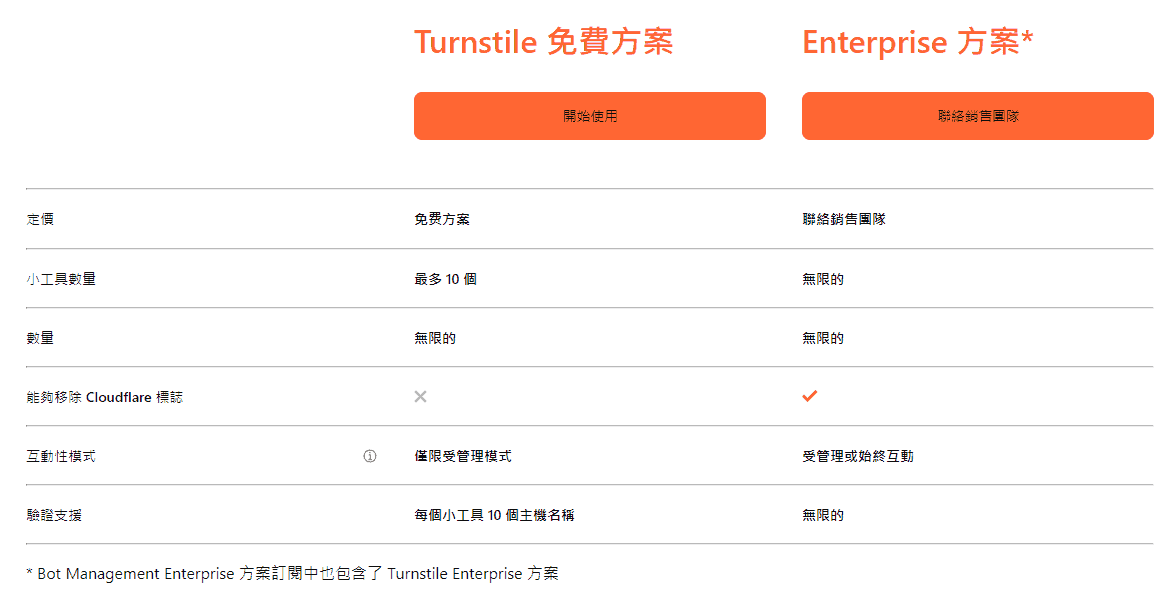
If you don't have a Cloudflare account yet, first go to the Cloudflare Turnstile page, find the Turnstile free plan, and click the "Get started" or "Start for free" button.
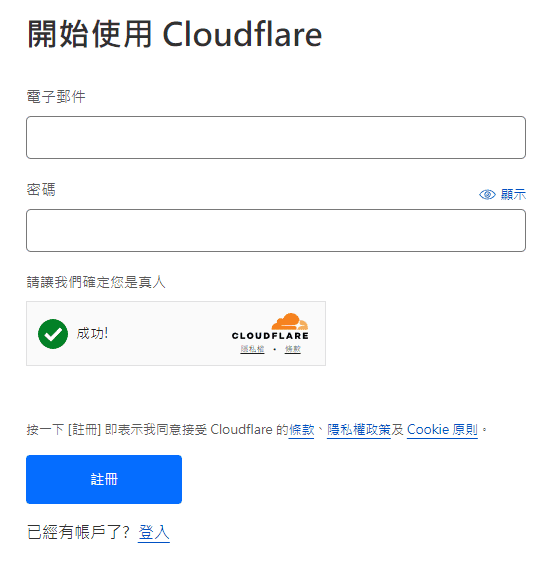
Fill in your email and password to quickly complete the registration. Cloudflare will send a verification email; remember to verify it in your inbox.
Add a Turnstile Site
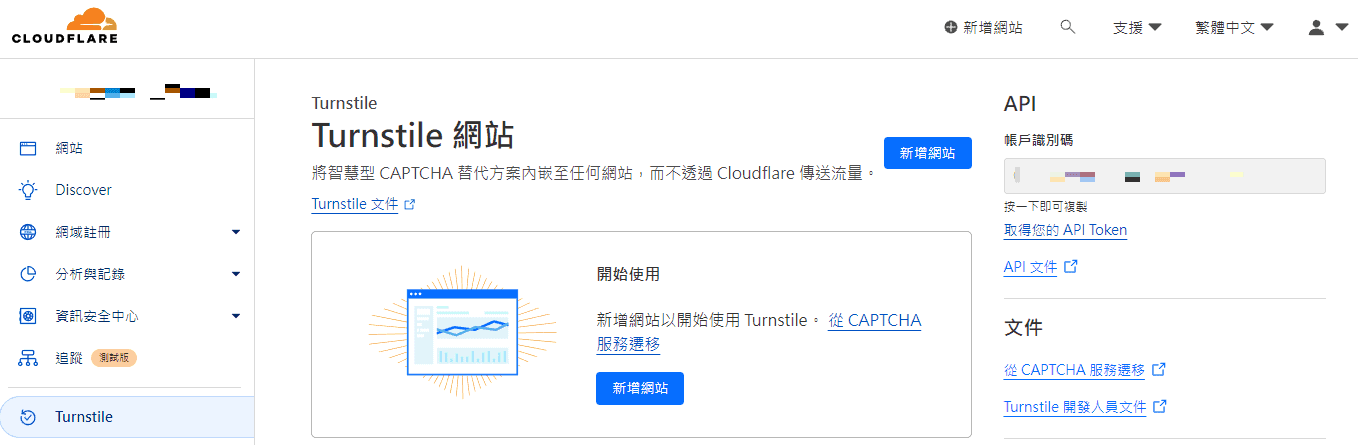
Next, go to the Cloudflare dashboard, find "Turnstile" in the left menu, and click the "Add Site" button.
In the "Add Site" page, enter the site name and the domain name using the Turnstile service.
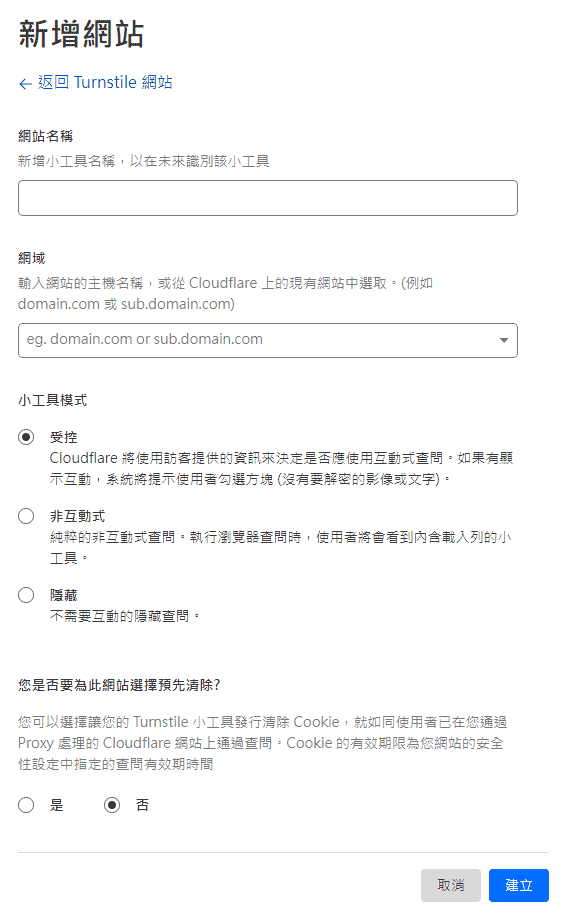
Widget Mode offers three options:
- Managed
Cloudflare will use information from the visitor to decide whether to employ non-interactive challenge verification. If an interactive widget is shown, the visitor needs to check a box to complete the verification. - Non-Interactive
Visitors will see a loading status icon while the challenge runs; they do not need to interact with the verification widget. - Invisible
Visitors will not see any widget or instructions on the page. Everything runs in the browser background and completes in just a few seconds.
After completion, press the "Create" button to add the Turnstile service to this domain's pages.

Get Keys
Upon successful creation, two keys will be displayed: "Site Key" and "Secret Key".
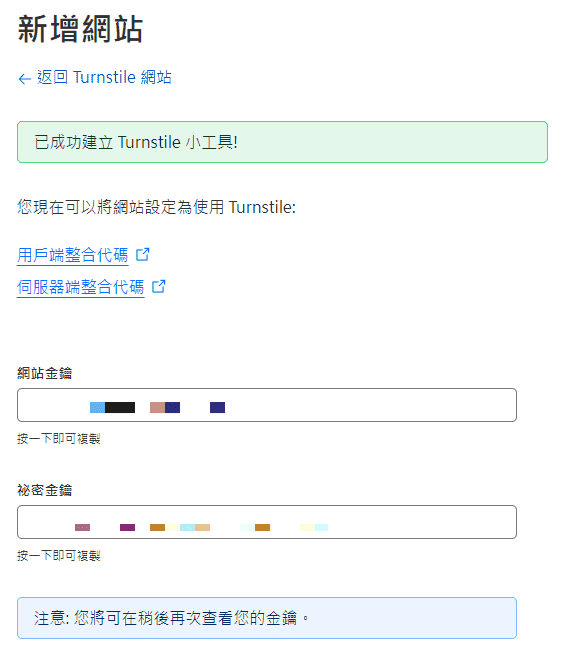
- Site Key
Needs to be placed on the client-side, i.e., in login, registration, contact, and comment forms where the widget verification is needed. - Secret Key
Used for server-side verification. Never place this on the frontend; otherwise, visitors or bots can see the secret key when viewing the source code.
We will use these two keys later.
Implement Cloudflare Turnstile
There are two ways to install Cloudflare Turnstile on a WordPress site. Since Cloudflare's developer documentation is quite detailed, technical webmasters can write code and add it via Code Snippets to install the Cloudflare Turnstile widget.
The other way is, of course, via plugins provided by the WordPress community, which is the most convenient and easiest method for most webmasters.
Let's start with the "Simple Cloudflare Turnstile" plugin.
Simple Cloudflare Turnstile Plugin
Simple Cloudflare Turnstile is the Cloudflare Turnstile integration plugin with the most users, relatively high support for third-party forms.
First, go to "Plugins" > "Add New" and search for Simple Cloudflare Turnstile.

Click "Install Now".
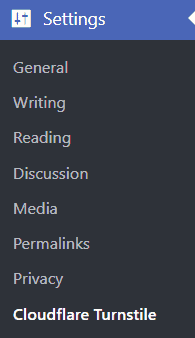
After installation, go to "Settings" > "Cloudflare Turnstile".
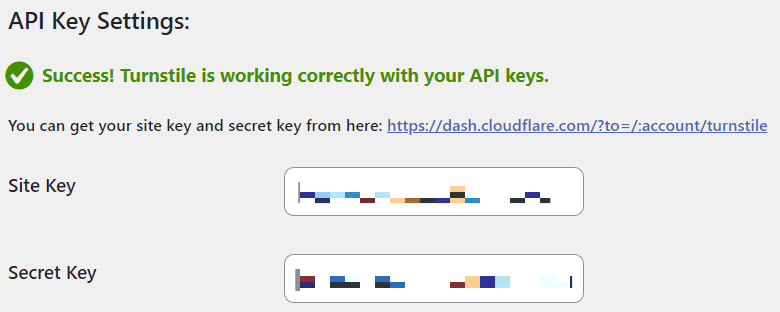
Enter the two keys you just got, then test if the API response is successful.
After confirming success, check the features you need to enable.
The number of third-party plugins supported by Simple Cloudflare Turnstile is still increasing. Once supported plugins are installed, you can find the option to enable them in these settings.
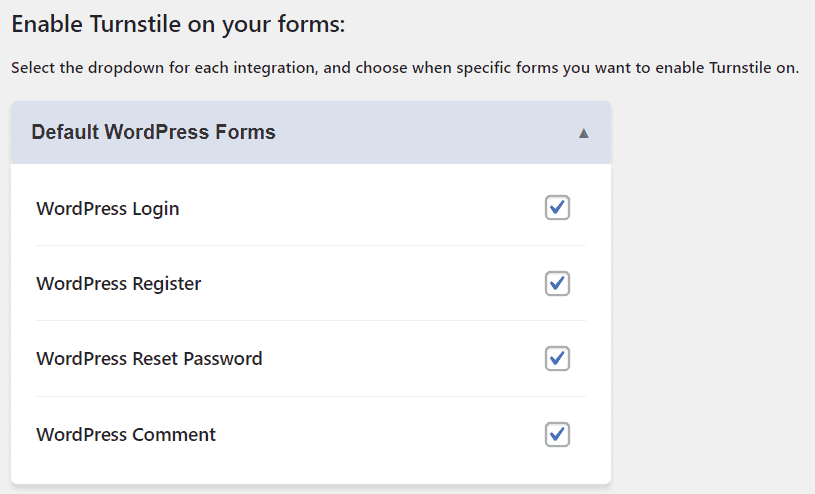
Once enabled, check the relevant forms, and you will see the Cloudflare Turnstile widget!
Go back to the Cloudflare website to see the relevant analytics, and you're all done.
Writing Code Snippets Yourself
Although installing a plugin allows you to start using the Turnstile widget immediately, the WordPress ecosystem has a vast variety of themes, page builders, block editors, and form plugins. Integration plugins (like the Simple Cloudflare Turnstile introduced above) take time to integrate famous form functions. If you use a form function not yet supported by Simple Cloudflare Turnstile, you cannot use the Turnstile service just by installing the plugin.
On the other hand, as these plugins support more and more other plugin forms, there are concerns that plugin functionality and page loading performance might be negatively affected.
Therefore, a need arises to directly add Cloudflare Turnstile functionality to the site using Code Snippets.
I also looked for efforts made by others (since Turnstile has been out for a while), including the Github template provided by Cloudflare, and a guide provided by someone in the WPCodeBox community on Reddit.
In summary, adding code to the client side is relatively simple; you only need to consider these two steps.
Load the JS code provided by Cloudflare on the page:
<script src="https://challenges.cloudflare.com/turnstile/v0/api.js" async defer></script>Add the Turnstile widget to the forms requiring verification:
<div class="cf-turnstile" data-sitekey="yourSitekey" data-callback="javascriptCallback"></div>Cloudflare offers 2 ways to render and add the Turnstile widget; you can use the method that suits your site.
The server-side verification flow code is much more complex and might not be something a coding novice can complete just by following the developer documentation.
However, I found another site, WPEXPLORER, which provides a very clear explanation. It not only provides complete PHP code for Turnstile verification on WordPress comments but also explains every step in detail.
SITE_KEY and SECRET_KEY are the "Site Key" and "Secret Key" mentioned earlier; you need to put the key strings inside the ''.
if ( ! class_exists( 'WPEX_CloudFlare_Turnstile' ) ) {

	class WPEX_CloudFlare_Turnstile {

		/**
		 * Our Turnstile site key.
		 */
		private const SITE_KEY = 'YOUR_SITE_KEY_GOES_HERE';

		/**
		 * Our Turnstile secret key.
		 */
		private const SECRET_KEY = 'YOUR_SECRET_KEY_GOES_HERE';

		/**
		 * Holds the instance of our class.
		 */
		private static $instance;

		/**
		 * Create or retrieve our class instance.
		 */
		public static function instance() {
			if ( is_null( self::$instance ) ) {
				self::$instance = new self();
				self::$instance->init_hooks();
			}
			return self::$instance;
		}

		/**
		 * Init Hooks.
		 */
		public function init_hooks() {
			add_action( 'wp_enqueue_scripts', [ $this, 'load_api' ] );
			add_action( 'comment_form_after_fields', [ $this, 'add_comment_form_fields' ] );
			add_action( 'pre_comment_on_post', [ $this, 'verify_comment' ] );
		}

		/**
		 * Load the api script.
		 */
		public function load_api() {
			if ( ! is_singular() || ! comments_open() ) {
				return;
			}

			wp_enqueue_script(
				'cloudflare-turnstile',
				'https://challenges.cloudflare.com/turnstile/v0/api.js',
				[],
				'v0',
				false
			);
		}

		/**
		 * Inserts the turnstile API div into our comment form.
		 */
		public function add_comment_form_fields( $fields ) {
			echo '<div class="cf-turnstile" data-sitekey="' . self::SITE_KEY . '"></div>';
		}

		/**
		 * Verifies our comment on submission.
		 */
		public function verify_comment( $comment_post_id ) {
			if ( is_user_logged_in() ) {
				return;
			}

			if ( ! array_key_exists( 'cf-turnstile-response', $_POST ) ) {
				wp_die( '<strong>CAPTCHA ERROR:</strong> Please click the captcha checkbox.<p><a href="javascript:history.back();">« Go back</a></p>' );
			}

			if ( ! $this->turnstile_check( $_POST['cf-turnstile-response'] ) ) {
				wp_die( 'WE DON\'T TAKE KINDLY TO BOTS AROUND HERE.' );
			}
		}

		/**
		 * Turnstile check.
		 */
		public function turnstile_check( $turnstile_response ): bool {
			if ( ! $turnstile_response ) {
				return false;
			}

			$url = 'https://challenges.cloudflare.com/turnstile/v0/siteverify';
			$args = [
				'body' => [
					'secret'   => self::SECRET_KEY,
					'response' => $turnstile_response
				]
			];

			$post = wp_remote_post( $url, $args );

			if ( ! $post || is_wp_error( $post ) ) {
				return false;
			}

			$response = json_decode( wp_remote_retrieve_body( $post ) );

			return ( ! empty( $response->success ) && $response->success );
		}

	}

	WPEX_CloudFlare_Turnstile::instance();
}
This code has some default conditions in use:
- It will not load on non-singular pages or pages where comments are not enabled
- It only shows the Turnstile widget verification for non-logged-in visitors
- The hook location for embedding the Turnstile widget is add_action( 'comment_form_after_fields' )
If you want to verify all visitors (logged-in + not logged-in), you need to:
- Modify the verify_comment() function to remove the is_user_logged_in() check
- Add the add_action( 'comment_form_logged_in_after' ) hook to the init_hooks() function as well
If you want to change the hook location for embedding the Turnstile widget:
- You can change the add_action( 'comment_form_after_fields' ) hook in the init_hooks() function to other hook locations in the form
You just need to add this code to your WordPress site using Code Snippets (we use WPCodeBox), and you will see the Cloudflare Turnstile widget in the comment section of post pages!
We also went a step further to delay the rendering of the Turnstile widget until the comment section appears, making page loading more efficient and keeping the rate of unsolved Turnstile challenges more normal.
Turnstile Analytics
After installation, go back to the Cloudflare website to see the relevant statistics.
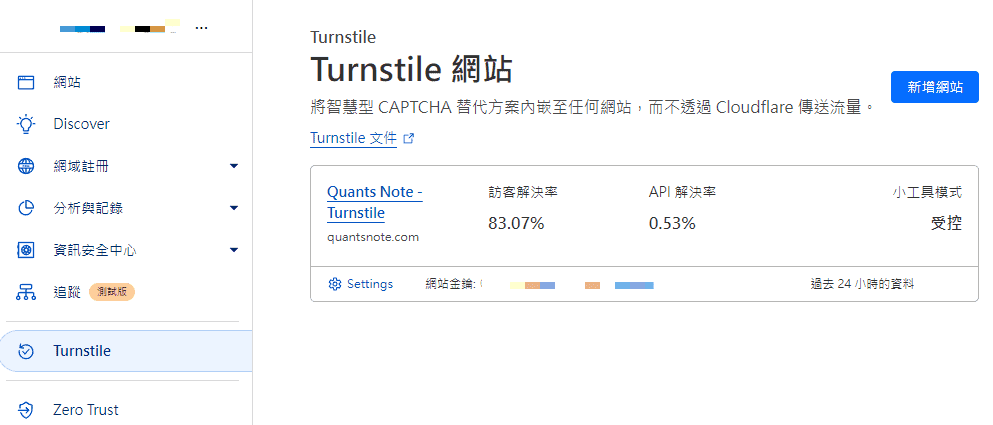
A complete Turnstile Challenge Token Flow involves 3 stages:
- Challenge is successfully rendered (rendered/issued)
- Challenge is solved on the frontend, and a token is obtained (solved)
- Token is sent to siteverify for verification, and verification is complete (siteverified)
Visitor Solve Rate is the ratio of the verification flow reaching stage 2 (solved) compared to completion of rendering (issued), where the system determines there is no need to complete stage 3 verification.
API Solve Rate is the ratio of completing stage 3 verification (siteverified) compared to completion of rendering (issued).
Clicking the widget name (e.g., Quants Note - Turnstile in the image above) shows more detailed statistics on Solve Rate and Widget Traffic over a past period.
Additionally, when inspecting loaded resources on the webpage using Inspect, if you see a 401 Unauthorized error message, don't panic or suspect incorrect installation steps or code.
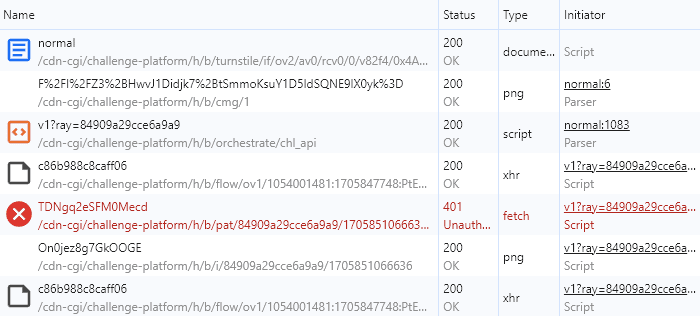
The 401 error appears because Cloudflare requested a Private Access Token (PAT) that your device or browser does not yet support.
Private Access Tokens: eliminating CAPTCHAs on iPhones and Macs with open standards
Conclusion
Regardless of coding ability, webmasters running WordPress sites are truly fortunate.
Based on the methods introduced above, webmasters who don't want to code can use a plugin to quickly complete the Cloudflare Turnstile installation, while those familiar with coding can directly add a small snippet of code to the site to install the Cloudflare Turnstile widget.
Once familiar, the whole process takes less than 10 minutes. I'm truly grateful to Cloudflare for providing such a convenient human verification service for free.
I hope the introduction above helps everyone significantly reduce the amount of spam comments, so you can spend less time managing spam and more time producing better content!
If you have any insights, thoughts, or suggestions, feel free to leave a comment or join the group to discuss together!




Thanks to the webmaster for the tutorial. There has been more and more spam recently, so I followed the tutorial to try it out. I hope there won't be any more spam! PS: In the step "In the 'Add Site' page, enter the site name and the domain name using the Turnstile service," I chose the Invisible widget~
Mm-hmm, give it a try. Observe the data on Cloudflare Turnstile in a few days as well, and you'll know if it's working.
I'm back to report: all spam comments have really been blocked! The website has been exceptionally clean these past few days! Thanks for the Quants Note tutorial!
That's great! Now you can use your precious time to focus on writing articles and interacting with netizens, instead of deleting spam comments.